


Most people think of Facebook as just a entertaining social media platform, but you might be surprised to know that over 64 million users are here only to shop on Facebook.
And if you’ve a woocommerce store, you can use Facebook’s catalog feed to make a significant increase in sales with a 9.21% rise in conversion rates.
Now, to successfully sell on Facebook, the first thing you need is the WooCommerce Facebook catalog feed.

However, it’s crucial to get it right, as Facebook has some strict requirements. Again, your product feeds can be rejected at any time due to non-compliance with Facebook’s standards.
But, how to accurately create a Facebook product catalog feed for WooCommerce?
Well, in this blog, we’ll go through the step by step guidelines of this process using the most effective plugin. And not just about the creation, you’ll get to know about proper feed optimization and adding your WooCommerce feed to the Facebook catalog as well.
So, let’s get started.
What is Facebook product catalog feed?
A Facebook product feed is basically a structured product file where all the products’ information is stored that you want to advertise or sell on Facebook.
But, why it’s called Facebook product “catalog” feed?
Basically, this “Catalog” term refers to the information container of each and every detail for all of your store’s products.
Now, when you create a product data feed for, say, Google Shopping, that feed only works for that particular marketplace. And if you add the feed to any other channel excerpt on Google Shopping, your product feed will be rejected.
But, for Facebook, things don’t work the same way. It’s because Facebook isn’t an independent or detached marketplace; rather, it’s a child marketing channel of Meta.
So, when you make a Facebook product feed, it not only works for Facebook, again, the same feed is used for its other meta marketplace like Instagram, Facebook shop, etc.
And for this, a catalog is important on Facebook because it enables personalized product recommendations to users to support Facebook and Instagram Shops for seamless shopping experiences.
Plus, the catalog reflects the integration of product organization and data automation for advertising on all platforms of Facebook for Woocommerce.
So, the purpose of facebook product feed isn’t only to effectively show your products on Facebook, again Facebook use the same feed for it’s other associated channels like instagram, Facebook shop etc.
What do you need to create a Facebook product catalog feed?
Like all other channel’s product feeds, like Google Shopping, Pinterest, TikTok, and Google Ads, the Facebook product feed also requires some specific attributes to properly and accurately show your products on Facebook.
For example, here is a Facebook product feed in a CSV file:
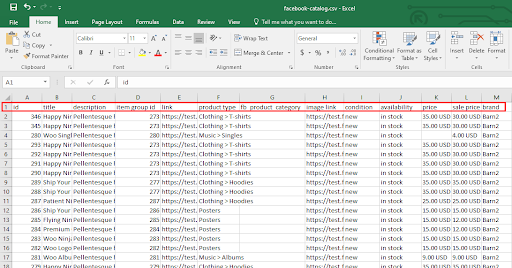
The red marked section contains the necessary attributes you need to create a Facebook product feed.
Now, let’s quickly check out the Facebook product feed specifications or the required fields for different platforms.
Product feed attributes for Facebook Shop:
- id
- title
- description
- availability
- condition
- price
- link
- image_link
- Brand, MPN, or GTIN (include at least one)
Product feed attributes for Marketplace (USA only)
- id
- title
- description
- availability
- inventory
- condition
- price
- link
- image_link
- Brand, MPN, or GTIN (include at least one)
- google_product_category
Facebook product feed attributes for dynamic ads, Instagram shop
- id
- title
- description
- availability
- condition
- price
- link
- image_link
- Brand, MPN, or GTIN (include at least one)
So, you’ve to make a Facebook product catalog feed which contains all the necessary attributes for all the different Facebook along with its associated platforms.
How to create a Facebook product catalog feed in WooCommerce? 3 Easy Steps
Now, you know all the attributes you need to make an accurate Woocommerce product feed for facebook. So, just collect all the information according to the list and just copy-paste all the details to make an excel file of the feed.
But, the fact is the feed you make isn’t permanent. As a Woocommerce owner, you better know how the attributes especially the price, size, availability or conditions keep frequently changing.
Sometimes you offer discounts on occasions or just want to add some seasonal products on your store. And, each time you do any changes, you’ve to go through this excel file and do all the changes manually.
It already sounds complicated, right? And if you’re dealing with thousands of products, then it’ll definitely be a complete fuss. Again, think about the time and errors you encounter when manually optimizing a single product, not to mention handling thousands.
Now, what’s the best way to create a Woocomerce Facebook catalog feed?
Well, the simplest and most effective way to create such a product feed is with a plugin.
You’ll easily find several plugins available for creating Woocommerce product feed for your Facebook. However, WooCommerce Facebook Product Feed Plugin- CTX Feed stands out for its accuracy and versatility with Woo products.
And the best part?
CTX Feed knows all the required as well as optional attributes for Facebook product feed, so it automatically formats your product data according to Facebook’s specifications.
Even, it has built-in templates for over 130 channels, including Facebook and Instagram and updates the feed whenever you change your store with
In fact, the plugin supports multiple languages, making it easy to list products on Facebook Marketplace in your preferred language. Most importantly, it offers a URL connection method, so once connected, CTX Feed handles all updates and management for you.
And, creating the facebook product catalog feed for Woocommerce just takes only 2 steps:
Step 1: Create a Woocommerce product feed for Facebook
Step 2: Optimize the Woocommerce Facebook product Feed
Step 3: Add WooCommerce product feed to Facebook catalog (Bonus step)
Let’s dive into the detailed process of each step.
Step 1: Create a WooCommerce product feed for Facebook
To create a Woocommerce product feed, first you’ve to install and activate the CTX Feed plugin on your site.
Just go to the dashboard of your site, and navigate to Plugins >> Add New Plugin. Simply search for CTX Feed and then install and activate the plugin.
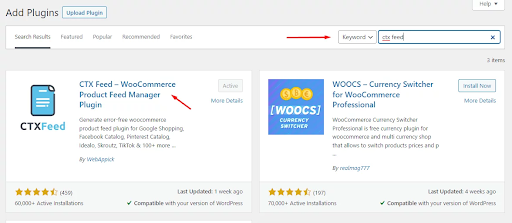
Now, once you activate the plugin, go to the left panel, and click on CTX Feed >> Make Feed.
CTX Feed includes templates for all channels. Simply select the Facebook/Instagram template from the dropdown.
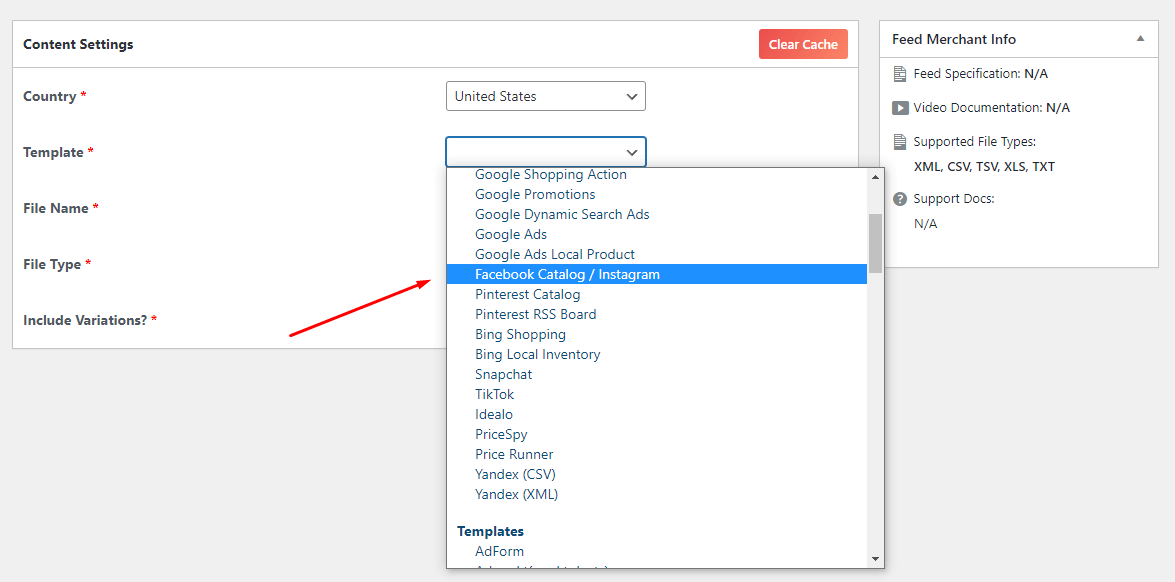
Next, choose your preferred file type.

Now, you can see all the attributes needed for the Facebook catalog feed are there. You just have to select the types of each attribute and your catalog feed is ready.
For example, to select the type of Product id, first ensure the attribute is in Type and select the value Product id from the drop down.

So easy, right?
Just set all the values of each type of attribute according to your product.
Now, you may wondering where is the other required attributes for Facebook feed like Brand, MPN, GTIN?
Well, you can simply create custom files for such attributes with the + icon and input the value.

But, CTX Feed makes this even more easier than you think. CTX Feed comes with all the possible custom fields you may need for different channels including Facebook.
You’ll easily find them under Settings>>Custom Fields.

Like for Facebook, you need to enable MNP, GTIN, Brand Name, etc. So, just toggle the switch for those attributes.
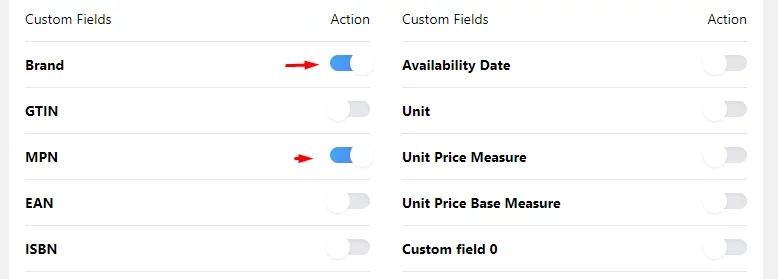
As you can see, there is a custom field for you to input data, and CTX Feed will automatically fetch and include it in the feed.
Now just click on the Update and Generate Feed button, and you’re all done.
Step 2: Optimize the Woocommerce Facebook Product feed
Now, you’ve the quick and 100% error free Woocommerce product feed for Facebook.
But, even though your feed covers all the required and optional attributes for Facebook, is this feed properly optimized and aligned with your marketing strategy?
Well, the CTX feed also covers you up here. Again, I’ll discuss the entire optimization process, and you’ll find how CTX Feed eases the optimization for you.
So, let’s jump into the optimization of your feed:
-
Title Optimization
The title is the first thing your buyers notice before clicking on it. So, optimizing the product titles of your WooCommerce Facebook product feed can significantly enhance visibility and click-through rates. Here’s how to craft effective product titles:
Title Length: The maximum product title length is 150 characters.
Title Structure: Your title should have a proper structure. Start the title with your brand name, then product type, and then add the key attributes like color, size, etc.
Again, try to include the keywords which people search related to your product.
Example: “Nike Running Shoes – Men’s Size 10, Black, Lightweight”
Avoid promotional words: Always avoid promotional words like “Sale” or “Discounts” in the title. Also, skip special characters.
-
Description Optimization
While optimizing descriptions, keep the following tips in mind:
Make clear and concise description: Start your description with the key benefits of your products. Try to add the features in bullet points and keep them bold to make them more focused.
Again, write the description in simple language or tone that your target audience can easily understand.
Add relevant keywords: Try to add primary or LSI keywords in your description to get more and more reach. You can simply look for what people search for when they are interested in buying something you sell.
Optimize for all devices: Use short, easy-to-read paragraphs since many users will view your product on mobile devices. Again, ensure that the description looks good and is readable on all device types.
-
Image Optimization
When your buyers want to buy something, the first thing they notice is the product image. So, here’s how you can properly optimize your product images for your buyers.
Product image size: Keep the size of your WooCommerce products as follows:
- Simple image: 1000 px * 1000 px
- Catalog image: 600 px * 600 px
- Thumbnail image: 300 px * 300 px
Take pictures of multiple angles: Showcasing multiple angles of your WooCommerce products is essential for providing customers with a complete view and increasing sales.
For example, if you’re selling a t-shirt, include a front shot, a back shot, and a close-up of the design on the chest.
Update the product image gallery: when you update your image gallery, it helps your customers get a better idea of your products. They can see the images from multiple angles in a row, and again, it’s also helpful for your search ranking on Facebook dynamic ads.
Utilizing low-quality images detrimentally affects your product presentation, representing a significant misstep. To mitigate this, it is recommended to employ AI image enhancement tools, such as an AI image upscaler, which effectively elevate photo resolution and overall quality.
Bonus Tip:
People always try to go with brands when buying Woo products. So, when it comes to selling products, nothing can be more effective than building your brand name.
And, CTX Feed Pro, the ultimate product feed PRO for WooCommerce, can also help you for branding your store. So, if you’ve the CTX Feed pro, then you’ll have a lot of options to build your brand name.
Step 3: Add WooCommerce product feed to Facebook catalog (Bonus Step)
To add WooCommerce products to your Facebook Shop, first you need to create an official page for your WooCommerce brand.
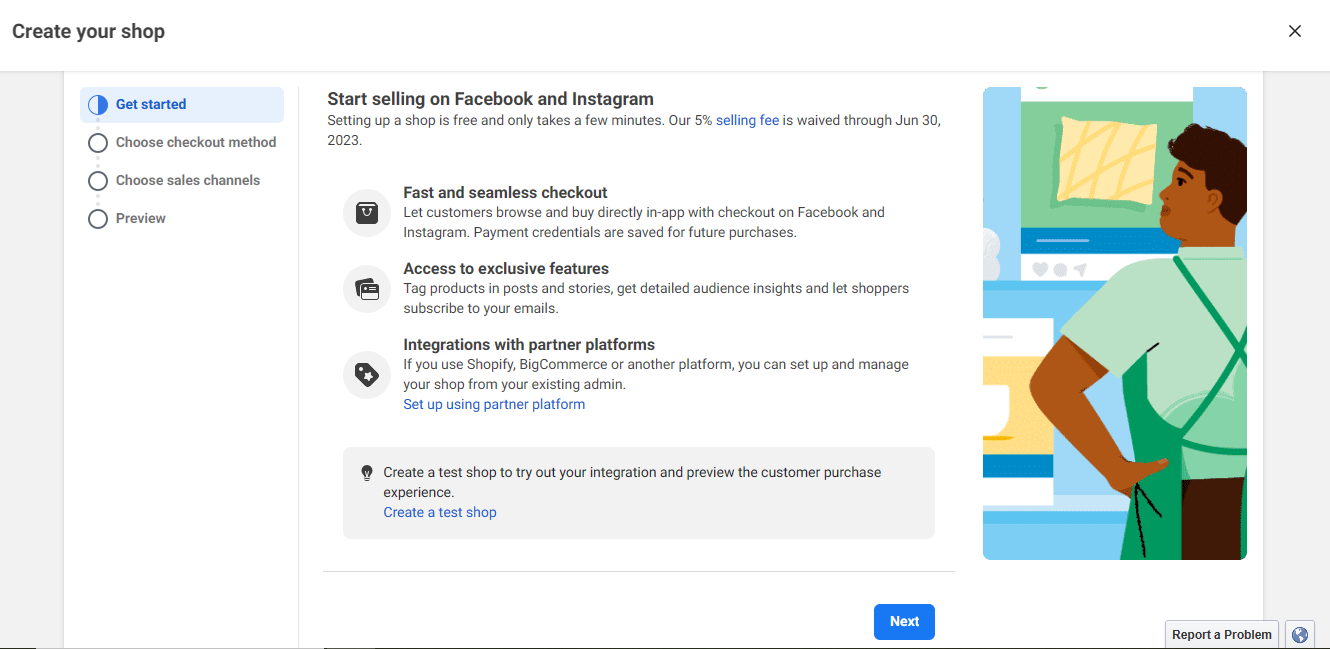
Next, access the Commerce Manager and click the Get Started button.

Then, to add WooCommerce products to Facebook Shop, select the first option and click on the Get Started button. This will guide you to the next window.
You can also create a test shop if you wish to try out the features.
Now, for the checkout method, you’ve 3 options.
- Check out another website: This option will take your users to visit and check out on your WooCommerce store.
- Check out on Facebook or Instagram: Facebook now lets customers make payments directly on the platform. Additionally, if you’re in the US, you can enable Shopify’s Shop Pay option as well.
- Check out messaging
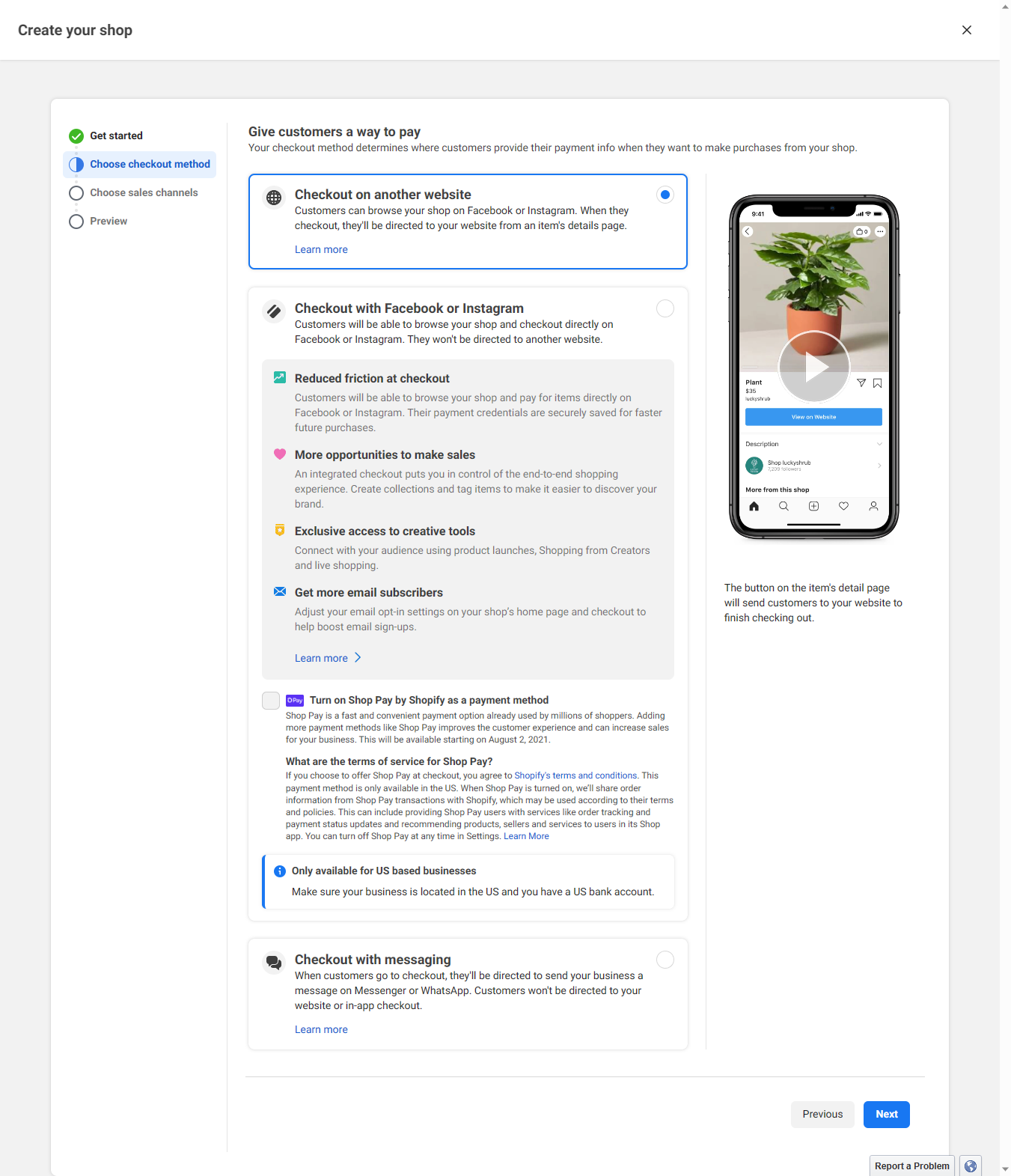
In this case, we’ll go for the first option “Check out on another website” to direct customers to your WooCommerce store, and click Next.
Then, select the brand page you created for your WooCommerce store and connect to your business account or create one if you don’t have any.
Congrats! Your Facebook shop is ready and successfully liked up with your Woo store.
But, how to show WooCommerce products on Facebook Shop?
Right now, your shop’ll be empty as there’s no product in your Facebook catalog.
If you don’t have a catalog, create one and upload the product info into that catalog. In your catalog, go to Data Sources and select the Data Feed option.
Now, Facebook lets you upload your product feed file in 3 different options.
- Upload from computer
- Use a URL
- Use Google sheets
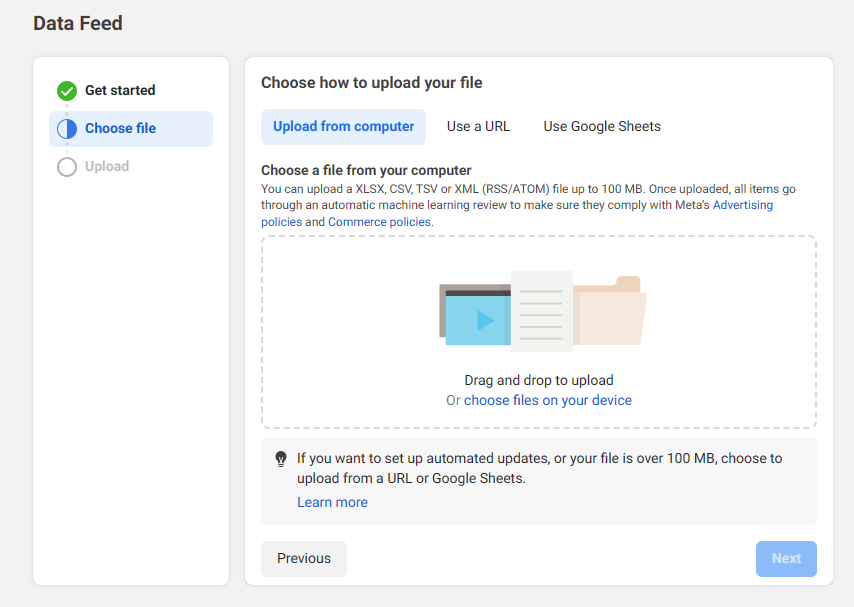
However, using URL is the easiest way. So, simply choose the URL method to upload your feed file and copy-paste the feed URL created in CTX Feed.
Where is the feed URL?
Well, simply go to CTX Feed >> Manage Feed and when you cursor over the feed URL, you’ll find a copy icon.
Again, make sure that the option for auto update is enabled.
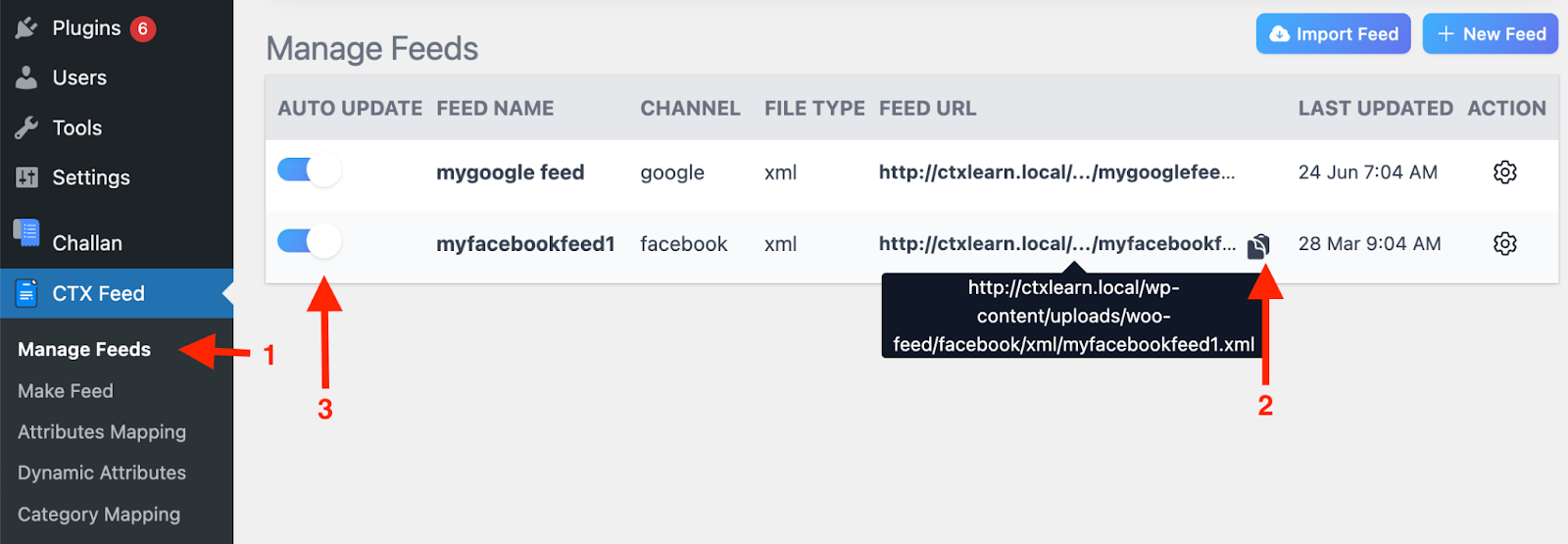
Now, set a schedule for feed updates and click Save Feed and Upload. Facebook will fetch product details from the feed and add them to your Facebook Shop.
With CTX Feed, your Facebook Shop will automatically update with any changes made to your WooCommerce store, allowing Facebook and CTX Feed to handle everything for you.
Promote your Woocommerce Products with Facebook product catalog feed
You’ve added your WooCommerce product feed to the Facebook catalog. But, do you know, how to effectively promote your catalog feed in Facebook or a compatible marketplace?
Here are the ways you can promote your product feed with Facebook catalog to reach the maximum buyers.
-
Facebook Ads:
The first and most available way to promote your Woocommerce product feed is with Facebook Ads. Facebook ads offer precise targeting capabilities, which allow you to reach specific demographics, interests, and behaviors.
This means your products will reach the most relevant users, that drives more engagement as well as sales. Again, you can use custom audiences to retarget visitors who have shown interest in your store.
With a variety of ad formats, like carousel ads, you can showcase multiple products in a single ad to maximize visibility and boost conversion rates.
-
Facebook Dynamic Product Ads:
Facebook dynamic ads are now a game-changer for personalized marketing. These ads automatically display the most relevant products to people who have shown interest in them, either on your website or elsewhere online.
In fact, dynamic ads mostly utilize your product catalog feed to ensure real-time inventory updates to keep your ads up-to-date and accurate. This automation not only saves you time but also ensures that your marketing efforts are focused on the most promising leads.
So, as your customers see products according to their preferences and needs, this personalized shopping experience greatly enhances the chances of conversions. Again, you can monitor the performance of the dynamic ads through Facebook pixel tracking.
-
Facebook Marketplace
Do you know, 250 million sellers use Facebook Marketplace worldwide to buy products?
Yes, you heard it right. That’s why, Facebook Marketplace for Woocommerce can be a bustling hub to reach your Woo products to millions.
Integrating your product catalog feed with Facebook Marketplace means your product listings always reflect your current inventory. This integration makes managing and updating your listings effortless.
Again, the excellent part of Facebook Marketplace is the marketplace’s local selling feature. This feature is particularly useful when you need to connect with nearby customers and conduct convenient transactions.
And, when you place your products in front of an audience that’s already in a buying mindset, you significantly increase your chances of making sales.
-
Instagram
When you create a feed for any platform of meta, your feed is automatically suitable for other meta marketing channels.
So, if you’re selling products with the Facebook catalog, then, you’re also eligible for Instagram marketing as well.
And, did you know, around 90% of Instagram users follow at least one business. 60% of users discover new products on Instagram?
Again, like Facebook ads or marketplaces, Instagram can also take your WooCommerce product catalog feed to a massive audience with Instagram’s extensive user base and high engagement rates.
In fact, Instagram allows you to tag products directly in your posts and stories to make it easy for users to shop your feed. When you connect your product catalog to Instagram, it enables users to view detailed product information and make purchases seamlessly without leaving the app.
This feature enhances the shopping experience and reduces friction in the buying process. Moreover, Instagram’s visual nature allows you to showcase your products in a highly engaging and aesthetic way, which can significantly boost interest and sales.
Conclusion:
When it comes to create a Facebook product catalog feed for your Woocommerce store, it becomes a breeze with CTX Feed. Even, it’s not just about creating a product feed, CTX Feed also lets you to optimize and branding for your store. And, any Facebook promotional campaign highly depends on the optimization of the product feed. So, make sure your Woocommerce Facebook catalog feed is 100% error free, and well optimized, and skyrocket your sales revenue on Facebook.

You must be logged in to post a comment.