


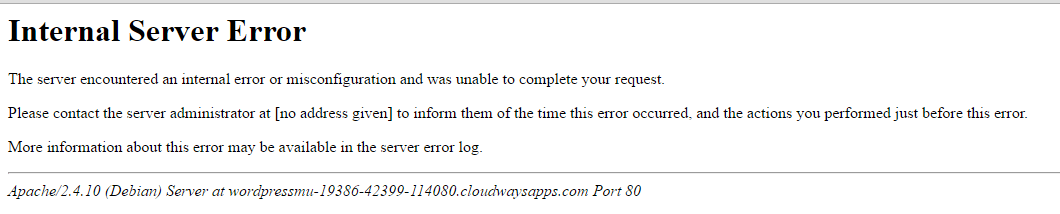
The 500 Internal Server Error is a rather common error on the WordPress platform. The causes are too many to list here and troubleshooting is never easy. In this article, i will go through several steps that could reduce the possibility of 500 Internal Server Error.
Site Backup
The first step is a complete backup of the website. This is a crucial step that should never be ignored. The backup is the guarantee that that in case of a disaster, the website could be restored without any issues.
Using FTP
Next up, you need an FTP client. There are too many clients to mention any favorites. If you already do not have one installed, i recommend that you should install one now. A FTP client is used to access and upload files to various subdirectories of the website.
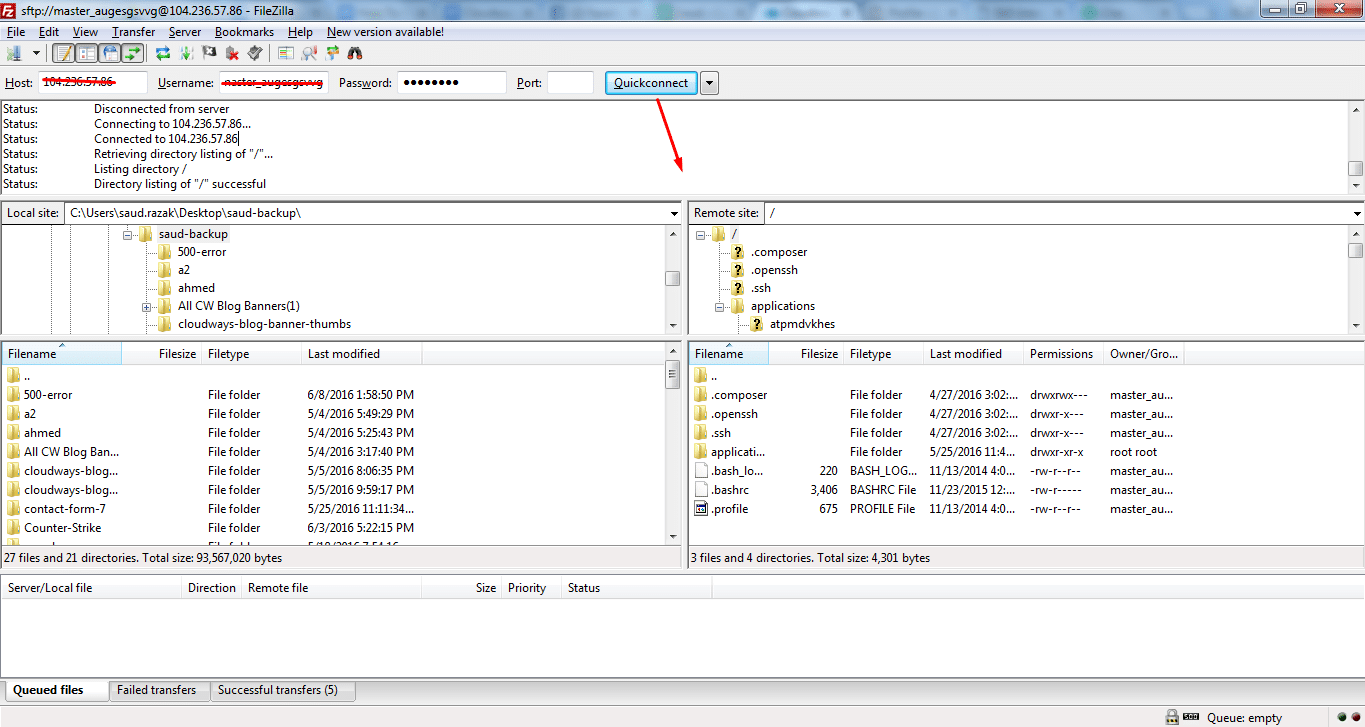
Enter the Host, Username, Password and Port and click the Quickconnect to access your FTP account.
How To Resolve 500 Internal Server Error
There are several reasons why the server would raise the 500 Internal Server Error flag. There are several fixes for the issue. Two common issues are a corrupt .htaccess file and PHP memory limit. A list of common issues include:
- .htaccess file
- PHP memory limit
- Deactivate all plugin
- Re-uploading core files
- Asking Your Hosting provider
Resolving .htaccess File Error
The first thing you need to check in the case of 500 Internal Server error is the .htaccess file. The .htaccess file is often affected by a plugin or a faulty installation of a theme. To resolve this issue you need to login to your FTP account. After successful login, you will see .htaccess file in the root directory along with other folders like wp-content, wp-include and wp-admin.
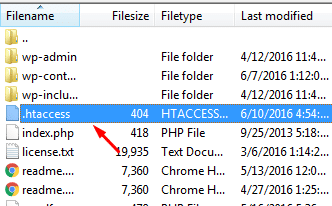
Download .htaccess file to a local location on your computer. Next, open this file in the text editor of your choice. Go to this link: https://codex.wordpress.org/htaccess and copy – paste the version of the code that is most suitable for your website. Save the .htaccess file and upload it to the live server.
For example, If you have WordPress Multisite on WordPress 3.5 or later, use the code below.

Once you completed this activity, check your website by loading it in a browser. If everything is working correctly, the error would be gone. If not, go to the next step.
Increasing PHP Memory Limit
In this step, I will explain how you could increase PHP memory limit. The web host and WordPress set PHP memory limits. When the memory starts to run low, the server often display a 500 Internal Server Error. This issue could be resolved by increase the limit of the memory.
There are several ways of increasing PHP memory limit.
Functions.php
Go to the root directory and then to the folder of the current theme. Every theme has a functions.php file.
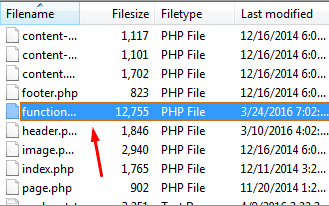
Download the functions.php file to a local location. Open it in your preferred browser and paste the following code at the top of the file and upload it back to the relevant folder at the live server.
@ini_set(‘upload_max_size’ , ’64M’);
@ini_set(‘post_max_size’, ’64M’);
@ini_set(‘max_execution_time’, ‘300’);
2. .htaccess File
The next step is to edit the .htaccess file, located with the major WP folders such as wp-content, wp-admin folder.
Once downloaded, open the file and paste the below code and then upload the file to the live server.
Here’s the code:
php_value upload_max_filesize 64M
php_value post_max_size 64M
3. PHP.ini
In step three, create a php.ini file and paste the following code in it. Upload to the wp-admin/ directory.
memory_limit = 64M
upload_max_filesize = 64M
post_max_size = 64M
file_uploads = On
4. wp-Config.php
The final step is to edit the wp-Config.php file that is located in the root directory.
Download wp-config.php and paste the following code in it. Upload the file to the live server.
Here’s the code:
define(‘WP_MEMORY_LIMIT’, ’64M’);
ini_set(‘post_max_size’, ’64M’);
ini_set(‘upload_max_filesize’, ’64M’);
Deactivate All Plugin:
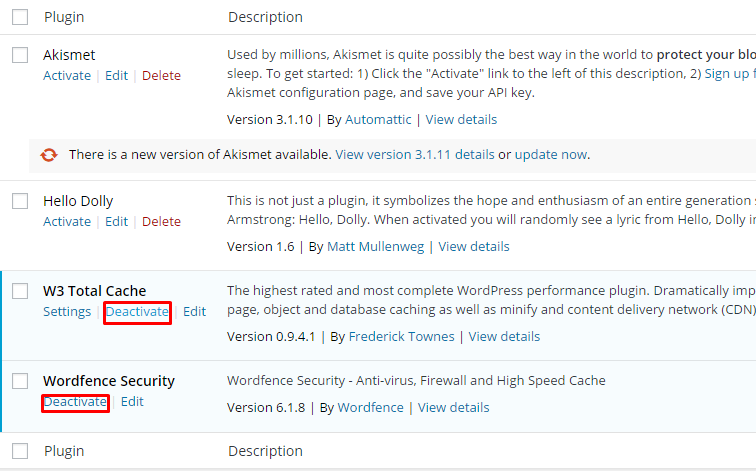
Access the admin dashboard of the WordPress website and go to the Plugins tab. Deactivate the plugins one by one and refresh your site after every deactivation. If the website starts functioning perfectly, then the error is in the plugin. Now, activate each plugin one by one and refresh your website after each plugin activation. The problematic plugin will soon be identified.
On the other hand, if you don’t have login credentials you need to access the website’s root directory through the FTP account. Once the connection is stable, go to wp-content/plugins and rename the plugins folder (for example plugins-test). Refresh the admin dashboard. If the 500 Internal Server Error persists, change the folder name back to plugins. You need to carry out the above-mentioned procedure of deactivating and testing the plugins to identify the culprit.
Hopefully, by now the problem has been resolved. If not, go to the next step.
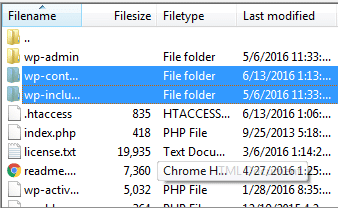
Fresh wp-admin & wp-includes
Download new wp-admin & wp-content folders and upload to live host via FTP. Make sure that you have backed up the website before this step.
Contact Your Hosting Provider
If you have run through all the above steps and the issue still has not been resolved, it is time to contact your hosting provider. Ask them to check things out from their end and go over the server settings.
Conclusion
That’s it, If you need to clarify a point discussed in this article or have an opinion on the issue, please leave a comment below.
About Author
Saud is the WordPress Community Manager at Cloudways. He is responsible for creating a buzz in the WordPress community around the globe. When he is not busy with work, Saud likes playing Cricket, reading about WordPress and learning new things on the internet. You can connect with him on @hmsaudrazzak

You must be logged in to post a comment.